
Resources are supplemental files added to a course to provide additional context or support beyond the core learning experience. These materials can include documents, guides, or other reference content tied to the course. Once added, resources appear in the course’s Resources area, where course learners can access them directly from the course.
-
Go to Content > Content Library
-
Search for the course you want to add the resource to, then select Configure on the course card.
-
Locate the module where the resource belongs
-
Expand the module and scroll to the Resource page
Select Add/ Upload Resource on the right side of the page. If multiple resource options are available, choose the appropriate resource type.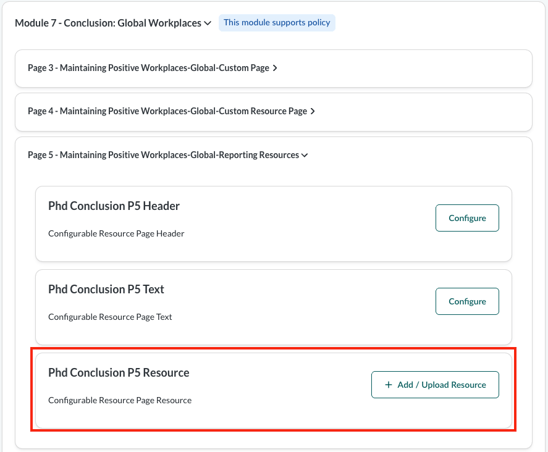
-
Select the resource format
Choose PDF, Link, or Rich Text, then select Next.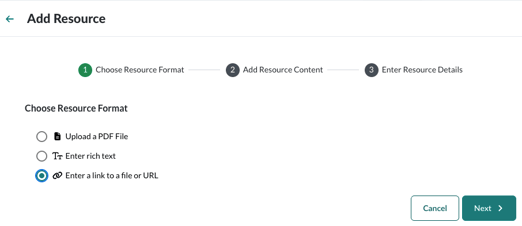
-
Enter a name in the Resource Name field
Choose a name that is clear and meaningful for both learners and administrators, as this name appears in the course.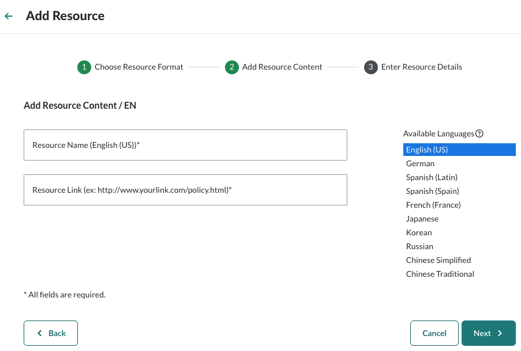
-
Add your resource content
Upload a PDF, paste a URL, or enter content using the rich text editor, depending on the format you selected. If using rich text, review the formatting before continuing. -
If you have versions of the resource in additional languages, follow the steps in the Add a Resource in Another Language article
-
Select Next
-
Choose where the resource should appear
The resource is automatically applied to the course you selected. You can also apply the resource to additional courses by selecting the checkbox next to each course name.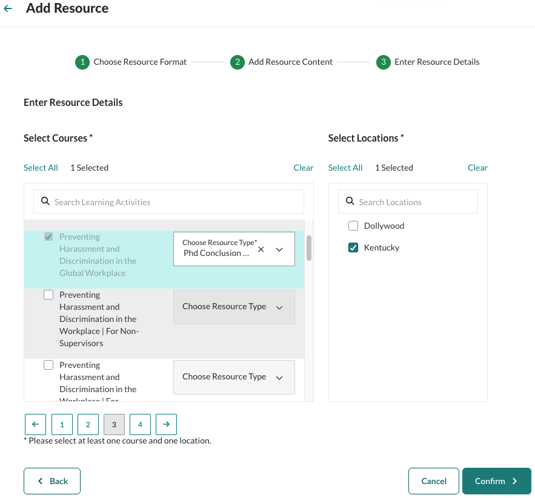
-
Select the locations where the resource should be shown. All learners assigned to those locations will see the resource.
-
Select Confirm
-
Back in the configuration menu, you may need to add a Custom Title or Header to ensure the resource page appears for learners.
Best Practice Note: Before you upload and share your policies or resources with your workforce, please run your company's approved virus detection software on it to verify it is safe and free from malicious code.