
Add a Resource in Another Language
Resources are supplemental files added to a course to provide additional context or support. In Foundry, resources appear within the course and can be made available in multiple languages for learners who need them.
Use the steps below to add a resource in another language.
Before you begin
If learners need access to resources in a language other than English, your account must have that language enabled. Available languages vary by course. If you do not see the language you need, contact Support.
Add or edit a multilingual resource
1. If you are adding a new resource, follow Steps #1-7 of the Add a New Resource article.
2. If you are editing an existing resource, follow Steps #1-3 of the Edit an Existing Resource article.
3. On the Add Resource Content page, locate the Available Languages section on the right. English is selected by default.
4. Add the English version of the resource first. When finished, select the next language you want to add. The Resource Name and PDF/Resource Link or rich text content fields will clear. If you switch back to English, the English content will reappear.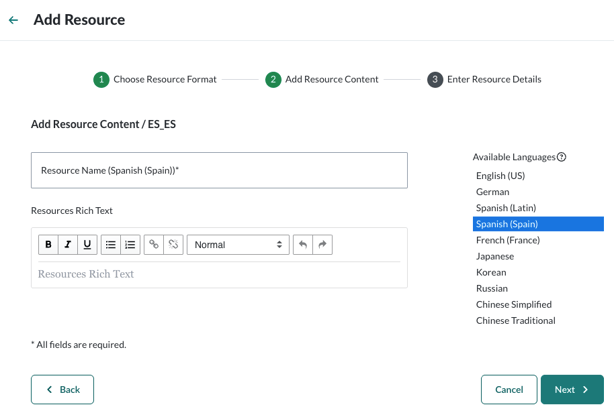
5. With the new language selected, enter the translated Resource Name and add the corresponding PDF, link, or rich text content.
6. Repeat these steps for each additional language.
7. When finished, select Next to choose the courses and locations where the resource will appear.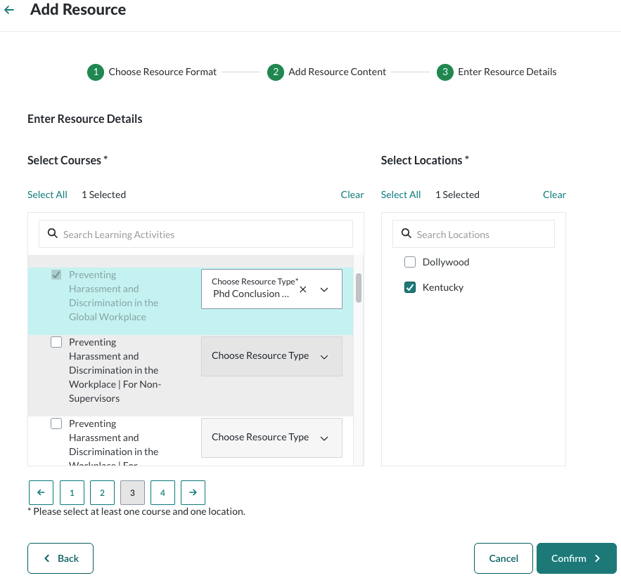
Best Practice Note: Before you upload and share your policies or resources with your workforce, please run your company's approved virus detection software on it to verify it is safe and free from malicious code.