
If you are bulk uploading a list of learners to Foundry for the first time, you can follow the Add Multiple Users process to attach the Custom Categories and Labels to all the new users upon initial upload.
Categories and Labels need to be created in Foundry before uploading, but this will save you a step in properly classifying your learners.
- Go Users > Manage Users
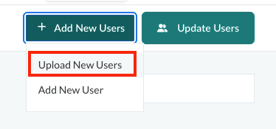
- In the top right corner, click Add New Users and select Upload New Users which is the top option.
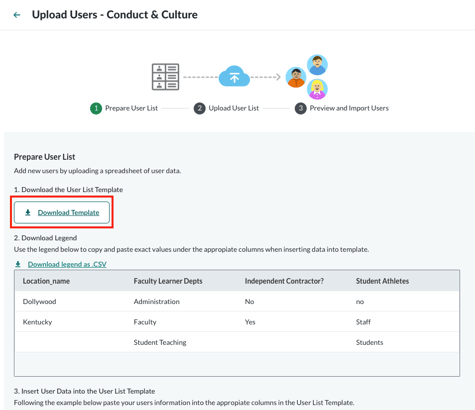
- Prepare User List
- Download Template
- This is the file you need to input your learner information to add them to Foundry.
- This is the file you need to input your learner information to add them to Foundry.
- Do not alter the headers, even if you are not using one. This will create an error when uploading learners.
- Download Template
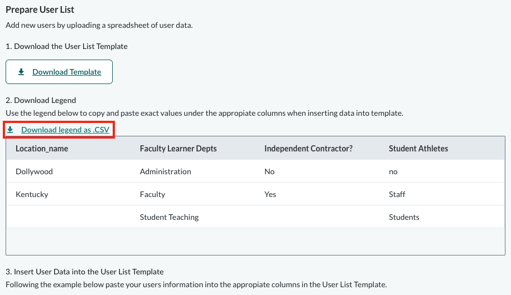
- Download legend as .CSV
- This table contains all your learner classifications that you can copy and paste into the template.
- Locations, Categories, and Labels need to match exactly what is in Foundry and is case sensitive. Any discrepancies will result in an upload error.
- Insert User Data into the User List Template
- Populate the template following the example with your specific learner information.
- See below for guidance to complete the template
- Save as a .CSV
- Click Next to upload your file to Foundry. Click Choose a File to select the .csv you want to upload.
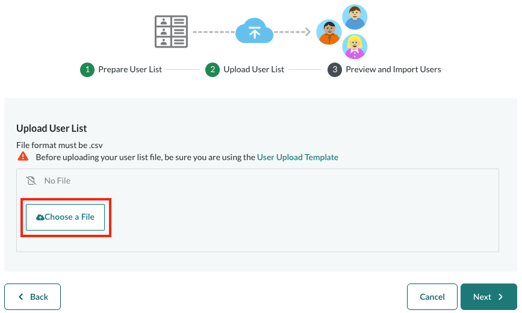
- Click Next to review and confirm the upload
- Go to Users > User Uploads to view the history of your past uploads