
If your organization has a large number of locations, you can save time by uploading them in bulk instead of creating them individually. Only have one or two locations to add? You might want to review: Add A Location.
- Go to Users > Locations
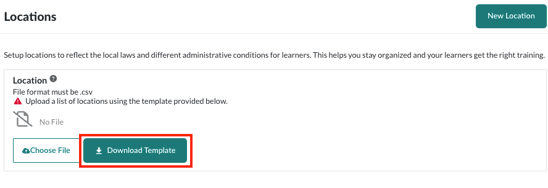
- Click Download Template to download a CSV file that you can use to upload your locations in bulk.
- Open the CSV file and populate the template by entered each location as a separate row.
- The columns marked with an asterisk (Name, State, and Country) are required and must be filled out at a minimum. You may leave the other columns blank.

- Do not alter the column headers by editing or deleting them, even if you are not using a specific column. Any changes to the column headers will generate an error when uploading the file.
- Once you have entered all your locations, save the file using the .csv file extension.
- Return to the Foundry Locations page and click Choose File to upload the CSV file that you prepared. The locations you entered into the template will be added to the Locations table.