
Overview
After creating an assignment in Foundry, the next step is managing it and tracking learner progress. This article walks you through the Assignments page and explains the actions available to you as an administrator.
Understanding assignment statuses as you review this page can be helpful, especially when adding or removing learners, sending reminders, or editing assignment settings.
When an assignment is created, Foundry generates an assignment tile on the Manage Assignments page. Each tile provides a quick overview of key details, including:
- Assignment dates
- Learning activities included
- Overall learner progress
Selecting Send Instant Reminder sends the reminder invitation configured in the assignment settings to all learners who have not yet completed the assignment.
Select anywhere on an assignment tile to view detailed learner and assignment information.
Assigned Learners tab
The Assigned Learners tab lists all learners who received an invitation for the assignment and shows their current status. You can also select Download Results to export learner data as a .CSV file.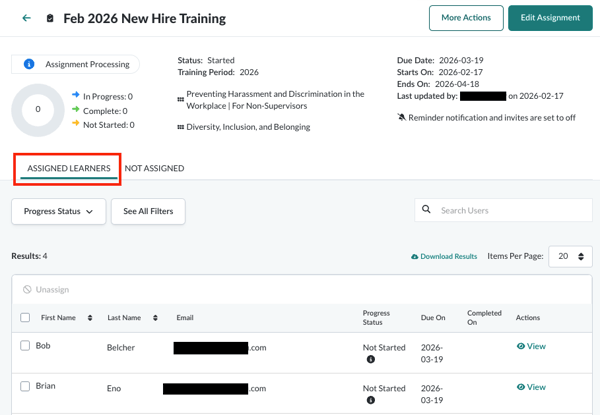
Add learners
You can add learners to existing Quick Assignments when:
- The assignment status is Scheduled, Started, or Past Due
- The archive date is still in the future
To add learners:
- Select Add Learners.
- Search for individual users or use filters to select a group of learners.
- Select Save once all desired learners are selected.
Unassign learners
Learners can be unassigned when the assignment status is Scheduled, Started, or Closed.
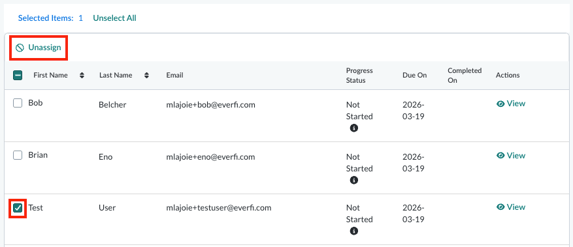
To unassign learners:
- Search for the learner or select Show Filters to find a group.
- Select the checkbox next to the learner’s name.
- Select Unassign and repeat as needed.
Learner progress status filter
Selecting a progress status under the Assigned Learners tab filters the list below to show only learners in that status.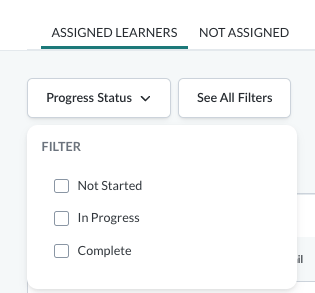
Participation indicator
In the Participation column, a small “i” icon indicates the learner was assigned the same content through another assignment.
To view details:
- Select View under Actions to open the learner’s profile
- Review which assignment contains the duplicate content
For more information, see Duplicate Courses Assigned below.
Not Assigned tab
The Not Assigned tab displays learners who are not currently assigned to the course. If a learner was unassigned by mistake, you can select them here and reassign them as needed.
Editing Assignments
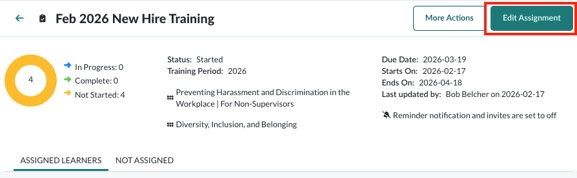
The Edit Assignment button returns you to the setup screen used during assignment creation.
- If the assignment has not started, all fields can be edited.
- If invitations have already been sent, only limited fields can be updated.
Duplicate courses assigned
Learners may occasionally be assigned the same course by different administrators. This commonly occurs in organizations with multiple departments or overlapping training requirements.
Learner experience
When a learner is assigned the same course:
- Through multiple assignments
- By different administrators
- Within the same training period
They will see the course only once on their Learner Dashboard.
- The displayed due date reflects the earliest due date from all assignments.
- Reminder emails continue to follow the schedule set by each administrator’s assignment.
If a learner accesses their dashboard from a reminder email, the course still appears only once.
Administrator experience
If administrators select the same training period, learner progress appears once and is shared across all related assignments.
If different training periods are selected, the course appears twice on the Learner Dashboard and must be completed twice.
Each administrator sees the same learner progress reflected on their assignment tiles and in reports. When viewing the Assigned Learners tab, the “i” icon in the Participation column identifies learners with duplicate assignments.
API considerations
If you use an API integration with the progress/user_assignments endpoint, note the following differences from earlier versions:
training_period_idandtraining_period_nameare returned as attributes in the assignment object.- A single progress object may appear in more than one
user_assignmentsobject if a learner is assigned the same learning activity multiple times.
In earlier assignment models, progress records were returned only once.