
Overview
Reminder emails help learners stay on track with their assignments in Foundry. When reminders are enabled, Foundry automatically sends emails to learners who have not yet completed their assigned learning activities.
Understanding when these reminders are sent—and how to adjust them—can help you reinforce deadlines, improve completion rates, and align messaging with your organization’s training expectations.
How reminder emails work
When you create an assignment, you have the option to enable reminder emails. If reminders are turned on:
- Reminder emails are sent only to learners who have not completed the full assignment
- The reminder schedule is tied to the assignment’s settings
- The next scheduled reminder date appears on the right side of the assignment view
Reminders are automatically triggered based on the cadence you select during assignment setup.
Viewing the reminder schedule
To see when reminder emails will be sent:
- Go to the Assignments page.
- Locate the assignment you want to review.
- Look to the right side of the assignment details to view the upcoming reminder date.
- If you'd like to send a reminder email, click the Send Reminder button
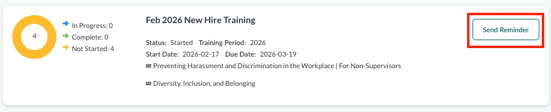
This view allows you to quickly confirm when learners will receive follow‑up communication.
Updating the reminder cadence
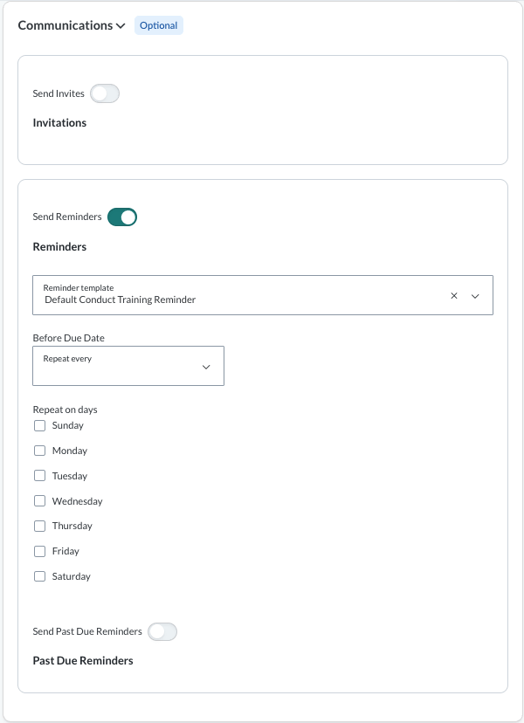
If you need to change the reminder timing or schedule:
- Open the assignment.
- Select Edit Assignment in the top‑right corner.
- Scroll to the Communications section and review or update the reminder email settings as needed.
- Save your changes.
Depending on the assignment’s status, some fields may be limited once invitations or reminders have already been sent.
When to adjust reminder timing
You may want to review or update reminder cadence if:
- Learners need more time before receiving follow‑ups
- Assignments are part of a longer training period
- You want reminders to align with internal deadlines or reporting cycles
Thoughtful reminder timing helps balance accountability with learner experience.
Best practices
- Use reminders consistently to reinforce expectations
- Avoid overly frequent reminders that may cause email fatigue
- Pair reminder emails with clear due dates and archive dates for best results
Note: Everfi starts sending emails at 5 am UTC, however that may not be the exact time that the learners will receive emails. depending on how many total emails the platform needs to send that day, the emails could be sent several hours after 5am.