
Creating an assignment is what activates training in Foundry. Until you create an assignment, learners do not receive an invitation, and they do not have a clear path to access training—especially because each organization has its own unique login URL. A Quick Assignment is a one-time assignment that sends selected content to a pre-selected group of learners at once, with the same start date and due date for everyone.
When to use a Quick Assignment
Use a Quick Assignment when you:
- Know the exact group of learners you want to train up front
- Want a single assignment with clear, straightforward tracking
- Are delivering a one-time training event, such as annual compliance training or a one-time orientation
Before you begin
To make assignment setup faster and clearer, we recommend having the following ready:
- Training Periods created
- Learners organized (for example, by labels, roles, locations, or other filters)
- Invitation and reminder communications drafted
Step-by-step: Create a Quick Assignment
-
Go to Assignments in the left navigation. You will land on the Manage Assignments page.
-
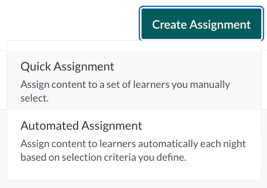
Click Create Assignment in the top-right corner. Select Quick Assignment.
-
Complete Assignment Details, including:
- Assignment Name
Internal only. Learners will not see this name. Use a clear naming convention so administrators can easily identify the assignment later. - Training Period
Ensures learners receive content only once per training cycle. This cannot be changed after the assignment starts. - Start Date (Invites Start)
The date invitations begin. This cannot be edited after it has passed. - Due Date
The date the assignment is due. This can be edited after the assignment starts, but not after the archive date has passed. - Archive Date
The date the assignment is deactivated and learners can no longer make progress. This can be edited after the assignment starts, but only until it has passed.
- Assignment Name
-
Add Content (Learning Activities)
- Click Add Content
- Select the course or courses to include
You cannot add or remove content after the assignment starts.
Note: Some courses include a Part 2 follow-up. If you select a course that includes Part 2, it is automatically added and does not need to be assigned separately.
-
Add Learners
- Click Add Learners
- Search for individuals or apply filters
- Select learners using the checkboxes, then add them to the assignment
Important: Using Select all selects only the learners shown on the current page after filtering. To include all intended learners, repeat the selection across pages or adjust the items-per-page setting.
-
Set up Communications (optional, but strongly recommended)
- Invitations
- Turn Send Invites on or off
- Select the Invite template
The invite template cannot be changed after the assignment starts, but invites can be turned on or off.
- Reminders and Past Due Reminders
- Turn Send Reminders on or off
- Choose reminder timing before and/or after the due date
- Select the Reminder template
Reminder templates and schedules can be edited at any time.
- Invitations
-
Review Advanced Settings (optional)
- Disable Surveys and/or Supplemental Question Set Surveys if needed
- If surveys are disabled, learners still complete in-course quizzes, but Impact Reports are not generated.
-
Click Save
Foundry schedules the assignment and sends invitations on the start date if invites are enabled.
What you can change after the assignment starts
Can be changed (with limits):
- Assignment Name
- Due Date (until the Archive Date passes)
- Archive Date (until it passes)
- Invite and reminder toggles
- Reminder templates and schedules
Cannot be changed:
- Training Period
- Invite template
- Assigned content
Close vs Archive
- Close: Ends the assignment early and stops learner progress and communications immediately. This action is not reversible.
- Archive: Deactivates the assignment on the archive date and prevents learners from continuing progress. This action is also not reversible.