
You can create and download a SCORM package to upload ComplyEQ course content into your learning management system (LMS).
Step 1: Start a new SCORM package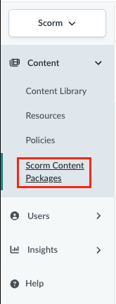
- In the left navigation, select Content, then go to SCORM Content Packages
- Click New SCORM Package to open the setup window

Step 2: Select course content and SCORM version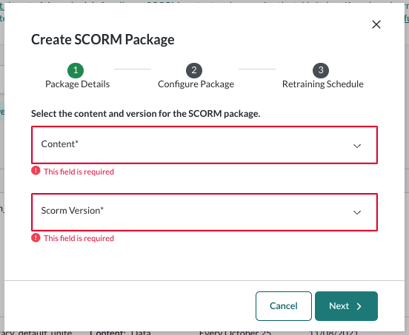 Content
- Select the course you want to include in the SCORM package
SCORM Version
- Select SCORM 2004 or SCORM 1.2
The version you choose depends on what your LMS supports. If you are unsure which version to use, contact Support.
- Click Next
Step 3: Configure course details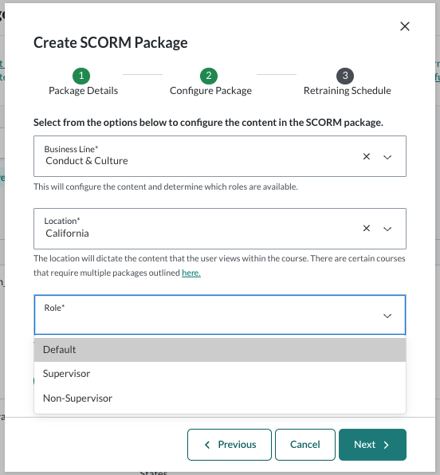 Business Line
- Select Conduct and Culture
Location
- Select the location for this course package
- Locations pull from what you have configured in the Locations tab in Foundry
Important
- For Preventing Harassment and Discrimination, the selected location determines the state‑specific version of the course
- Wage and Hour courses include an option to package the California version, if needed
Role
- Select Supervisor or Non‑Supervisor
- For Preventing Harassment and Discrimination, the role must match the course version selected earlier in the workflow.
- For example, if you selected Preventing Harassment and Discrimination: Non‑Supervisors, the role must be Non‑Supervisor.
Enable Surveys
-
Toggle this on or off depending on whether you want to collect learner insights
-
Click Next
Step 4: Set the retraining schedule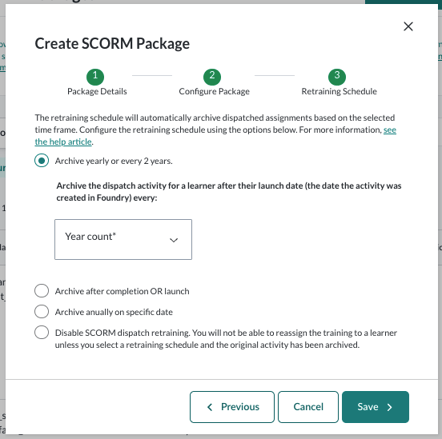 Retraining Schedule
- Select how often learners should be retrained
- This setting automatically archives the activity based on the selected timeframe
Important notes
- Changes apply only to learners who have not yet started the course
- Learners who are In Progress remain on their original retraining cadence
- Example If a learner is in progress with a retraining schedule of Every 1 year and the schedule is changed to Every January, that learner remains on the Every 1 year schedule.
- If no learners are in progress, changes apply to learners who begin the course after the update.
- Example If a learner is in progress with a retraining schedule of Every 1 year and the schedule is changed to Every January, that learner remains on the Every 1 year schedule.
Step 5: Save and download the package
- Click Save to generate the SCORM package
- Click Download SCORM Package
A ZIP file downloads to your computer. This ZIP file contains the full SCORM package and is the file you upload into your LMS.