
You can deactivate an existing resource so it no longer appears to learners. Deactivated resources are removed from learner view but remain saved in Foundry.
If you need to control which courses see a resource or which languages a resource appears in, see Edit An Existing Resource.
Deactivate a resource from the Resources page
Use this option to remove a resource from all courses where it is currently used.
- Go to Content > Resources
- Locate the resource in the resources table
- In the Actions column, select the ban icon
 to deactivate the resource
 - Review the confirmation message, which lists all courses using the resource
- Select Okay to confirm
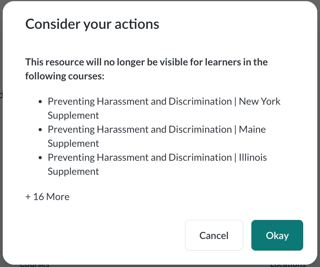
Once deactivated, the resource no longer appears to learners in any course.
When to edit instead of deactivate
If you want to:
- Show a resource in some courses but not others, or
- Control which languages display a resource
Do not deactivate the resource. Instead, follow the steps in Edit An Existing Resource.
Editing allows you to fine‑tune visibility without fully removing the resource from learner view.
Important note about global resources
- Global resources cannot be edited
- Global resources can be deactivated, which removes them from learner view