
There may be times when you need to deactivate a user in your Foundry account. For example, when an employee leaves your organization, they should no longer have an active user record.
Deactivating a user removes them from active user lists so they do not appear when creating assignments. Their historical data is retained for reporting and record‑keeping purposes.
Deactivate a user
Follow the steps below to deactivate a single user.
- Go to Users > Manage Users
- Search for the user you want to deactivate
- Select the user’s name to open their User Profile
- In the top‑right corner, select More Actions, then choose Deactivate User
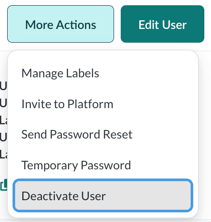
- In the confirmation message, select Deactivate User to confirm
The user is immediately deactivated.
What happens after deactivation
- Deactivated users do not appear in the Manage Users list when filters are set to Only Active Users
- Deactivating a user does not delete their data from the Reporting section
This allows you to maintain accurate records while keeping your active user lists up to date.