
You can deactivate an assignment in Foundry when you no longer want learners to access it or be added to it. Foundry supports two ways to do this:
- Archive an assignment
- Stop automation (automated assignments only)
Each option affects learners differently, so it’s important to choose the right one.
Assignment deactivation options
The table below explains how archiving and stopping automation impact learners and assignments.
| Action | When to use it | Can new learners be added? | Can existing learners continue? | Assignment type |
|---|---|---|---|---|
| Archive assignment | You want to fully end learner access | No | No | Quick and Automated |
| Stop automation | You want current learners to finish, but no new learners assigned | No | Yes | Automated only |
Archive an assignment (recommended)
Archiving is the primary way to deactivate an assignment. Use this option when you want to fully end learner access.
This is the only deactivation option available for Quick Assignments.
Steps to archive an assignment
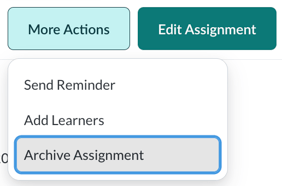
- Select Assignments from the left navigation
- Open the assignment you want to deactivate
- Select More Actions
- Select Archive Assignment
- Confirm the action
Once archived, learners can no longer make progress on incomplete courses in that assignment.
Stop automation for an automated assignment
Stopping automation prevents new learners from being assigned automatically, while allowing learners who are already assigned to continue and complete their courses.
This option applies only to Automated Assignments.
Steps to stop automation
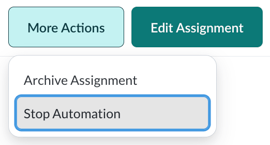
- Select Assignments from the left navigation
- Locate the automated assignment
- Select More Actions
- Select Stop Automation
After automation is stopped, the assignment is considered closed to new learners, but existing learners retain access.
Archiving assignments with Part 1 and Part 2 courses
If an assignment includes a Part 2 course that is automatically assigned after Part 1, you must archive each part separately.
Archiving Part 1 does not automatically archive Part 2.
Archive Part 2
- Select Assignments from the left navigation
- Locate the assignment with follow‑up content
- Select Follow‑Up Assignments on the far right of the assignment row
- Open the Part 2 assignment
- Select Archive Assignment
This ensures the entire assignment sequence is fully deactivated.
Important notes
- Once an assignment is archived, it cannot be unarchived
- To reuse the same content, you must create a new assignment
- “Closed” is not a manual action and does not apply to Quick Assignments