
You may need to delete a location from your Foundry account if it was created in error, such as a duplicate location. Because locations can be used in reporting and assignments, deleting a location may impact historical data.
Only delete a location when you are certain it will not be needed for future reference.
Before you delete a location
A location cannot be deleted if there are any users still associated with it.
Before deleting a location, make sure that:
- All users assigned to the location have been moved to a different location
- You no longer need the location for historical reporting
If users are still associated with the location, Foundry will prevent the deletion.
Delete a location
Follow the steps below to delete a location from your account.
- Go to Users > Locations
- In the locations table, find the location you want to delete
- In the Actions column, select the trash icon (Delete Location)
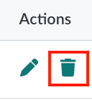
- Review the confirmation message
- Select OK to confirm
If the location has no users assigned to it, it is immediately removed from your account and no longer appears in the Locations table.
If you receive an error message
If you see an error when trying to delete a location, it means one or more users are still assigned to that location.
To resolve this:
- Move the affected users to a different location
- Then return to Users > Locations and delete the location
For instructions on updating user locations in bulk, see the Edit Multiple Users article.
Important considerations
- Deleted locations cannot be recovered
- Deleting a location may impact historical reports and records
- Only delete locations you are confident you no longer need