
You can edit certain parts of a Quick Assignment depending on its current status. Some fields are only editable before invitations are sent, while others remain editable after learners begin the assignment.
This article explains:
- How to access the edit screen
- Which fields can be edited and when
- How to add or remove learners from a Quick Assignment
Open a Quick Assignment for editing
- Select Assignments in the left navigation to open the Manage Assignments page
- If your account supports multiple learner audiences, select the appropriate audience from the dropdown in the upper‑left corner
- Select the Quick Assignment you want to edit

- Select Edit Assignment in the top‑right corner
The edit form opens. Some fields may be unavailable depending on the assignment’s status.
Editable fields by assignment status
The table below shows which fields are editable for Quick Assignments, based on assignment status.
| Field | Editable when status is Scheduled | Editable when status is Started | Editable when status is Archived | Notes |
|---|---|---|---|---|
| Assignment Name | Yes | No | No | Can only be edited before the Invite Start date |
| Training Period | Yes | No | No | Cannot be changed once the assignment has started |
| Learning Activities | No | No | No | Cannot be changed after creation; create a new assignment to change content |
| Invite Template | Yes | No | No | Can only be edited before the Invite Start date |
| Invites Start* | Yes | No | No | Can be edited until it has passed; cannot be set to a past date |
| Due Date* | Yes | Yes | No | Can be edited before or after it passes, including moving it to a future date |
| Archive Date | Yes | Yes | No | Must be after the Due Date and cannot be set to a past date |
| Reminders | Yes | Yes | No | Editable until the Archive Date has passed |
| Advanced Settings | No | No | No | Survey settings cannot be changed after creation |
* Field behavior differs for Automated Assignments
Archive a Quick Assignment
You do not need to open the Edit Assignment screen to archive a Quick Assignment.
To archive an assignment:
- Select Assignments in the left navigation to open the Manage Assignments page
- Select the Quick Assignment you want to archive
- Select More Actions
- Select Archive Assignment
- Confirm the action
Archiving immediately ends learner access to the assignment.
Important notes
- You can archive a Quick Assignment while it is Scheduled or Started (including Past Due)
- Once archived, the assignment cannot be edited or reopened
Add learners to a Quick Assignment
You can add learners to an existing Quick Assignment if both of the following are true:
- The assignment status is Scheduled or Started
- The Archive Date is still in the future
Steps
- On the Assignment, Select More Actions > Add Learners
- Search for individual users or use filters to find groups of learners
- Select the learners you want to add
- Select Save
Unassign learners from a Quick Assignment
Learners can be unassigned while the assignment status is Scheduled or Started.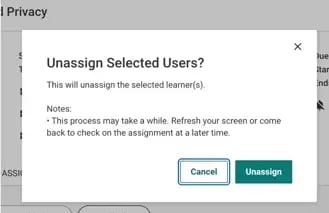
Steps
- On the Assignment, Search for the learner or use filters to find a group
- Select the checkbox next to the learner’s name
- Select Unassign
- Repeat as needed for additional learners
Important notes
- Learning Activities and Advanced Settings cannot be edited after an assignment is created
- To change course content, survey behavior, or training period, archive the assignment and create a new one
- In Equity, Acceptance, and Respect: Global Harassment and Discrimination Prevention, surveys are built into the course and cannot be disabled