
You can edit certain parts of an Automated Assignment depending on its current status. Some fields are only editable before automation begins, while others can be updated while the assignment is running.
Open an automated assignment for editing
- Select Assignments in the left navigation to open the Manage Assignments page.
- Select the automated assignment you want to edit.

- Select Edit Assignment.
Editable fields by assignment status (Automated Assignments)
| Field | Editable: Scheduled | Editable: Started | Editable: Closed | Editable: Archived | Notes |
|---|---|---|---|---|---|
| Assignment Name | Yes | No | No | No | Can only be edited before the Automation Begins date |
| Training Period | Yes | No | No | No | Can only be edited before the Automation Begins date. Training periods can be created/edited anytime, but you can’t change the training period on an assignment once automation begins. |
| Learning Activities | No | No | No | No | Cannot be edited after creation. To change learning activities, archive the assignment and create a new one. |
| Selection Criteria | Yes | No | No | No | Can only be edited before the Automation Begins date |
| Invite Template | Yes | No | No | No | Can only be edited before the Automation Begins date |
| Automation Begins* | Yes | No | No | No | Can be moved earlier or later as long as it has not passed; cannot be set to a past date |
| Automation Stops* | Yes | Yes | Yes | No | Can be edited until the assignment is archived |
| Due Duration* | Yes | Yes | Yes | No | Can be edited until the assignment is archived |
| Archive Date | Yes | Yes | Yes | No | Can be edited as long as it has not passed. Does not auto-adjust. Must be on/after the Automation Stops date (cannot be set before it). |
| Reminders | Yes | Yes | Yes | No | Reminder template and schedule can be edited until the Archive Date has passed |
| Advanced Settings | No | No | No | No |
Disable Surveys and Disable Supplemental Question Set Surveys cannot be edited after creation. To change these settings, archive the assignment and create a new one. |
After making changes in the edit form, select Update Assignment.
Stop automation or archive an automated assignment
You do not need to open the Edit Assignment screen to stop automation or archive an assignment.
- Select Assignments in the left navigation.
- Select the automated assignment.
- Select More Actions.
- Choose one:
- Stop Automation (the assignment will display as Closed after automation is stopped)
- Archive Assignment
What each option does
- Stop Automation: Prevents new learners from being added going forward. Existing learners keep access to continue progress.
- Archive Assignment: Fully ends learner access and stops progress on incomplete courses.
Add learners to an automated assignment
You can’t manually add learners to an automated assignment because learners are added based on selection criteria.
If a learner needs access but isn’t included, you have two options:
- Update the learner profile so the learner meets the assignment’s selection criteria (for example, Location or Custom Labels). The learner will be added during the next nightly automation run (around midnight UTC).
- Create a Quick Assignment with the same learning activities and assign the learner there instead.
Unassign learners from an automated assignment
Learners can be unassigned while the assignment status is Scheduled, Started, or Closed.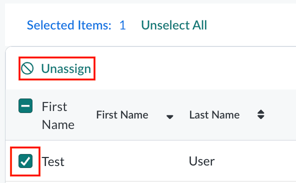
- Search for the learner you want to unassign, or use filters to find a group.
- Select the checkbox next to the learner’s name.
- Select Unassign and repeat as needed.
Important notes
- Learning Activities, Selection Criteria, and Advanced Settings can’t be edited after automation begins.
- To change learning activities, surveys, or selection criteria after automation begins, archive the assignment and create a new one.
- Course-specific exception: In Equity, Acceptance, and Respect: Global Harassment and Discrimination Prevention, surveys are built into the course and cannot be disabled.