
To edit an existing policy, add a language, or change where it shows to learners:
-
Go to Content > Content Library
-
Search for the course the policy is in and click Configure on the card
-
Find the module in which the policy is located. In newer courses, you can look for a label next to the module title which says “This module supports policy.”

-
Expand the module and scroll until you see the policy you want to edit. Click the Edit button.
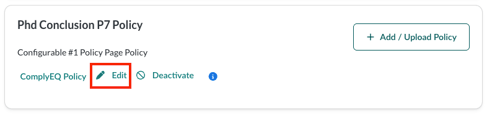
-
You will be taken to the Add Policy Content step. Here you can edit the Policy Name or change the policy itself by uploading a new PDF or changing the URL.
-
Note: If you need to change the policy format (for example, from a PDF to a link), you will need to deactivate a policy and add a new policy .
-
-
If you need to add a version of your policy in another language, select a language from the right and edit in the center.
-
Once you have made the desired edits, click Next
-
You will be taken to the Enter Policy Details step. Here you can change the courses and locations where the policy will display. Add or remove courses and activities on the left. Add or remove locations on the right. If a policy shows in the right course, but in the wrong place, change the policy type in the dropdown just to the right of the course name.
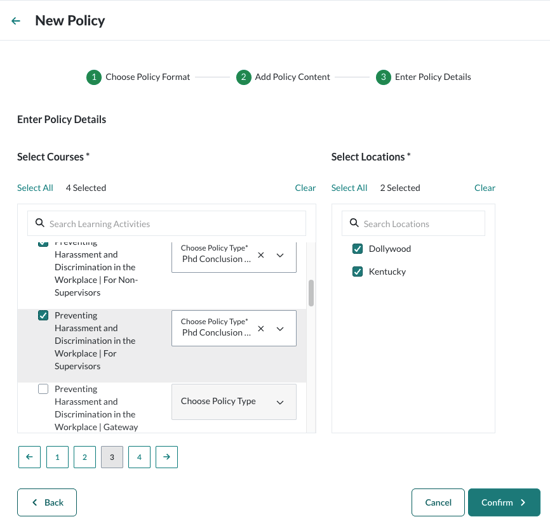
-
Click Confirm to save your edits.