
Foundry provides several ways to edit multiple users at once, depending on how many users you need to update and how complex the changes are. All bulk edits start from Users > Manage Users, but the way you select and update users differs by method.
Use this article to choose the right bulk‑edit approach and apply changes safely.
Choose a bulk editing method
Use the table below to decide which method best fits your situation.
| Method | Best for |
|---|---|
| Manual selection or filters | Small or medium groups with shared attributes |
| Quick Lists | Specific, reusable groups across categories or locations |
| Upload‑to‑Update | Large or complex updates across many fields |
Edit users using Manage Users (selection‑based)
These methods use the Manage Users page to select users, then apply bulk actions.
Select users
You can select users in three ways:
Manual selection
- Check the boxes next to individual user names
Filters
- Use filters (Location, Label, Role, Status, etc.) to narrow the list
- Select all filtered users using the checkbox in the table header
Quick Lists
- Create a Quick List with the users you want to update
- Go to Users > Manage Users
- Select See All Filters
- Expand Quick List
- Select the Quick List and apply filters
- Select all users using the table‑header checkbox
Once users are selected, choose a bulk action.
Available bulk actions (selection‑based)
Set Category
Add, update, or remove Labels for selected users.
- Choose a Category, then select the Label to apply
- The selected label replaces any existing label in that category
- You can also remove the label entirely for selected users
Set Location
Change the location for all selected users.
- Locations must already exist in your account
- All selected users are updated to the chosen location
Deactivate
Deactivate selected users.
- Deactivated users cannot log in or complete courses
- User profiles are not deleted and remain for compliance
- Deactivated users do not appear in reports or metrics
Reactivate
Reactivate previously deactivated users.
- Users regain access to their account
- If an assignment was active when the user was deactivated, they can continue progress
Edit users using Upload‑to‑Update (CSV)
Upload‑to‑Update is recommended when you need to update a large number of users or make multiple changes at once.
This is the only method that allows you to:
- Update multiple fields in one action
- Add learner capabilities in bulk (for example, faculty/staff)
- Add or update identifiers such as SSO ID or Employee ID
Important limitations
- Email addresses cannot be updated using Upload‑to‑Update
- Maximum upload size is 10,000 users
Before you upload
- Create any new Categories, Labels, or Locations first
- Go to Users > Manage Users and select Download Results to review current user data
- Categories, Labels, and Locations must match Foundry values exactly (case‑sensitive)
If you don’t have access to view existing categories or labels, contact an administrator who does.
Upload‑to‑Update process
- Go to Users > Manage Users

- Select Update Users (top‑right)
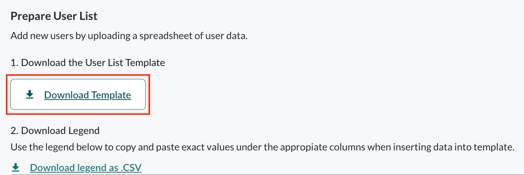
- Download the User List Template
- Do not edit or remove column headers
- (Optional) Download the Legend CSV for reference values
- Populate the template:

- Enter the user’s email address to identify the user
- Fill in only the fields you want to update
- Leave other columns blank if you do not want to change them
- Save the file as a .CSV
- Upload the file and choose whether blank cells should delete existing data
- Review and confirm the upload
- Go to User Uploads to view upload status and history
Important considerations
- Bulk edits affect all selected users immediately
- Upload‑to‑Update can overwrite or remove data if not configured carefully
- Your organization may have multiple teams using the same Foundry account
- Depending on permissions, you may not see all learners managed by other admins
Always confirm scope before applying bulk changes.