
After you create an assignment, the next step is to monitor progress and manage learners. The Manage Assignments page is the central place to view assignment details, take action, and track completion.
Each assignment appears as a tile that provides a snapshot of:
- Assignment dates
- Included learning activities
- Overall learner progress
Select an assignment tile to view learner‑level details and available actions.
Assignment tile actions 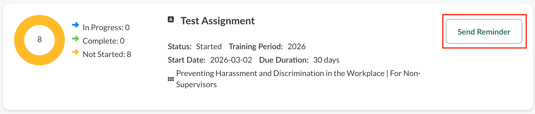
Send instant reminder
Selecting Send Reminder sends the reminder template selected in the assignment settings to all learners who have not completed the assignment.
This action does not affect reminder schedules or due dates.
Assignment details tabs
When you open an assignment, you’ll see two tabs: Assigned Learners and Not Assigned. You will also see two buttons with more options: More Actions and Edit Assignment.
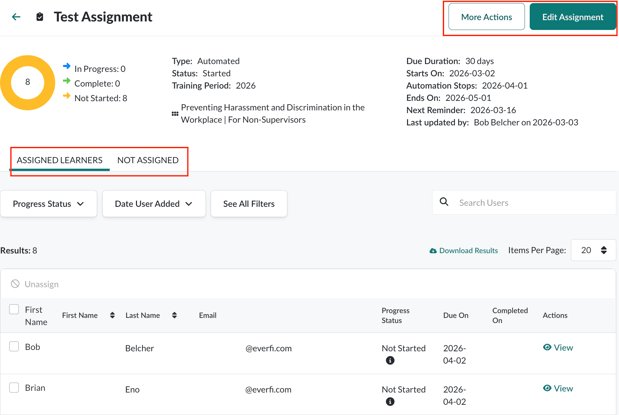
Assigned Learners
This tab lists all learners who were invited to the assignment and shows their current status.
From this tab, you can:
- View learner progress and participation status
- Download learner data using Download Results (CSV)
- Add or remove learners (when permitted by assignment type and status)
Learner status filtering
Selecting a status in the status bar filters the list to show only learners in that status.
Participation indicator
Some learners may display an information icon (ⓘ) in the Participation column. This indicates the learner received the same course through another assignment.
To see details:
- Select View under Actions to open the learner’s profile
- Review which assignments include the duplicate course
See Duplicate Courses Assigned below for how this affects learners and admins.
Add learners
Quick Assignments
You can add learners to an existing Quick Assignment when:
- The assignment status is Scheduled or Started (including past due), and
- The Archive Date is still in the future
To add learners:
- Select Add Learners
- Search for individual users or use filters
- Select the learners to add
- Select Save
Automated Assignments
Learners cannot be manually added to Automated Assignments. Learners must meet the assignment’s selection criteria to be included.
Unassign learners
Learners can be unassigned when the assignment status allows it.
To unassign learners:
- Search for a learner or use filters
- Select the checkbox next to their name
- Select Unassign
- Repeat as needed
Learners who have already completed the assignment may not be eligible for unassignment, depending on assignment status.
Not Assigned
This tab lists learners who were removed from the assignment. If learners were unassigned by mistake, you can select them here and reassign when permitted.
Assignment Settings
This tab shows the assignment configuration selected during creation. What you can edit depends on assignment type and status.
Editing rules (high level)
| Cannot edit after start | Can edit after start |
|---|---|
| Assignment name | Due date / Due duration |
| Training period | Archive date |
| Learning activities | Reminder on/off |
| Invite template | Reminder template |
| Start date / Automation begins | Reminder schedule |
| Advanced settings | — |
Caution: Once an assignment is archived, it cannot be unarchived. To make changes, you must create a new assignment.
Duplicate courses assigned
Learners may receive the same course through multiple assignments, often due to overlapping training plans across departments. This is expected behavior.
Learner experience
If a learner receives the same course:
- From multiple assignments
- Within the same Training Period
They will see one course instance on their Learner Dashboard.
- The earliest due date applies
- Reminder schedules from each assignment continue independently
- The learner completes the course once
If assignments use different Training Periods, the learner will see separate course instances and must complete each one.
Administrator experience
When duplicate courses are assigned within the same Training Period:
- Each administrator sees the same learner progress reflected in their assignment and reports
- The Participation column shows an information icon (ⓘ) for affected learners
- Selecting View opens the learner profile to show all related assignments
Key takeaways
- Assignment tiles provide a quick snapshot; select a tile for details
- Learner management rules depend on assignment type and status
- Automated Assignments rely on selection criteria, not manual adds
- Duplicate course logic prevents unnecessary re‑completion when Training Periods match