
Overview
Previewing a course allows you to review content and customizations before assigning it to learners. This helps ensure the course experience matches the roles and locations you plan to support.
How to Preview a Course
To preview a course:
- From the left navigation, go to Content and select Content Library
- Select the course you want to preview
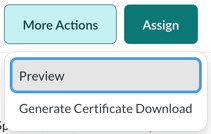
- Click the More Actions button in the top-right corner
- Select the Preview option
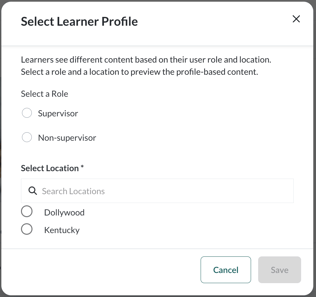
If the course includes role‑specific or state‑specific content, which is common for compliance courses, you will be prompted to select a learner profile. Choose the role and/or location you want to preview, then click Save to view the course as that learner.
Courses That Cannot Be Previewed
Course preview is not available for Preventing Harassment & Discrimination in the Workplace or Diversity, Inclusion & Belonging.
To view content and customizations for these courses, you must assign the course to yourself as a learner.
If you are not already set up as a learner, edit your user profile and select the appropriate learner role. Once assigned, we recommend creating a test assignment that includes all planned content. Add yourself and any other administrators so you can experience the course as a learner.
Tip: Turn off reminders for test assignments so you do not need to complete the entire course.