
Overview
As an admin, you can manually send a password reset email to an admin or learner. This allows the user to reset their password and regain access to their account.
You may want to send a password reset when:
- A user forgets their password
- A user needs help accessing a course
- A user needs an extra reminder outside the standard reminder schedule
Send a Password Reset
To send a password reset email:
- Go to Users and select Manage Users
- Locate the user by scrolling through the list or using the Search Users field in the top-right corner
- Click the user’s name to open their User Details page
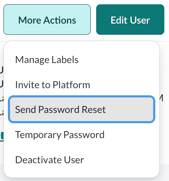
- Click More Actions in the top-right corner and select Send Password Reset
- Review the confirmation message and click Send Password Reset to confirm
Sending a password reset temporarily resets the user’s password for 12 hours.
The user receives an email with a link to reset their password. After creating a new password, they are automatically logged in and taken to their Learner Dashboard, where they can access any assigned courses.