
Overview
The Survey Results Report displays aggregated results from pre‑, post‑, and follow‑up
surveys that are deployed with assigned learning. Depending on your network, this report may appear as the Workplace Insights Report.
Use this report to review response counts, analyze trends over time, and better understand learner attitudes and behaviors across your organization.
What the Report Shows
The Survey Results Report allows you to:
- Browse survey questions and aggregated responses
- View response counts and percentages for each answer choice
- Search for specific survey questions using keywords
- Review results by survey section
- Measure changes in responses over time
All data shown in this report is aggregated and anonymous.
Learner Anonymity and Data Use
This survey asks learners about their beliefs, attitudes, and experiences. The survey is anonymous.
- Individual responses are never reported or tied back to a learner
- Learners may skip questions they prefer not to answer
- Anonymous data helps evaluate course effectiveness and inform improvements
Some questions relate to demographics. Research shows that workplace experiences can vary across different identities, and aggregated demographic data helps organizations understand trends and plan inclusive communication and support strategies.
Course Evaluation Summary
The top section of the report displays all active courses with associated surveys that have activity in your account.
For each survey, you’ll see:
- The course name
- The survey name
- The total number of responses collected
Select a survey by:
- Clicking the survey row, or
- Choosing it from the evaluation dropdown
This loads detailed results in the lower section of the report.
Survey Results Table
Once a survey is selected, results appear below after at least 20 responses have been collected.
You can refine the data using the following filters:
- Search question text
- Training period
- Section title
- Benchmark
- Sort by
- Sort order
The results table displays:
- Survey question
- Answer options
- Benchmark values (if available)
- Answer count
- Percentage of total responses
Benchmarks
Benchmarks are provided by ComplyEQ and depend on factors such as:
- Network membership
- Industry
- Organization size
- State
- Athletic conference
- Religious affiliation
- Minority‑serving institution
For each benchmark, a row is added to the results table for every response option.
Important notes:
- Benchmark data includes your organization’s data
- Benchmarks are only available after a survey has been deployed and responses collected
Benchmark Display Rules
Benchmark data appears only when all of the following are true:
- At least three organizations are included in the benchmark group
- No single organization accounts for more than 66% of responses
- The question has at least 20 responses
The following questions are never benchmarked:
- Demographic questions (to preserve anonymity)
- Custom survey questions created by your organization
Customer Average Benchmark
All customers have access to the Customer Average benchmark by default.
- Includes data from all ComplyEQ customers who deployed the survey
- Not restricted by network membership
- Available once responses are collected
Exporting Survey Results
To export survey data and visualizations as a PDF:
- Select the blue indicator next to the results you want to include
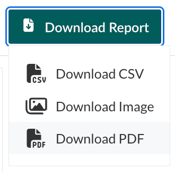
- In the upper‑right corner, select Download Report and choose Download PDF
- In the modal, choose:
- Include: Specific sheets from this dashboard
- Top Section to export the course and survey summary, or
- Bottom Section to export detailed question‑level results
To export a targeted data set, apply filters before generating the PDF.
Once downloaded, open the PDF to review or print.