
Overview
The Training Progress Report is an interactive dashboard that displays learner progress and completion data for assigned courses. This report is designed to highlight the most critical assignment‑level data administrators need, without unnecessary filters or clutter.
Each section of the report works together, allowing you to filter and explore data dynamically. The Training Progress Report is available only to Primary Administrators.
Important Timing and Data Notes
Keep the following timing considerations in mind when reviewing data:
- The Training Progress Report is one day behind real‑time activity
- Data refreshes nightly
- Completion data has a 1:00 PM ET cutoff
If a learner completes a course after 1:00 PM ET, the system counts that completion as the previous day. Because the report updates the following day, you will not see that completion reflected until two days later.
Downloading Requirements
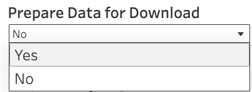
Before downloading any data:
- Locate Prepare Data for Download in the top‑left corner
- Set the toggle to Yes
This step prepares the data for export. If you skip this step, downloads will fail.
Report Layout
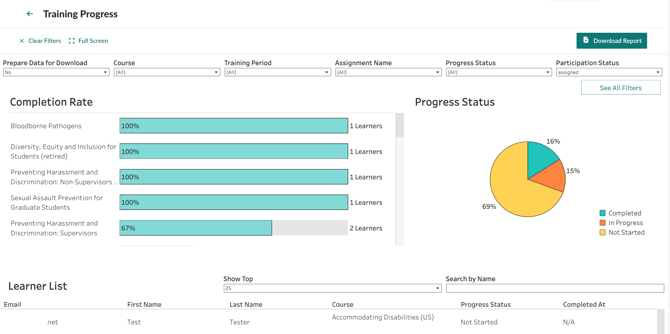
This report removes the traditional left‑side filter panel. Instead, filtering happens through:
- Top‑level filters across the top of the report
- Interactive charts that refine results when selected
Selecting an element in one chart automatically updates all other charts to reflect the same subset of data.
Overall Filters
At the top of the report, the following filters apply to all charts and tables:
Participation Status
- Assigned
- Closed
- SCORM
Past Due
- Displays learners with incomplete, past‑due assignments only
Policies Missing
- Displays learners missing a required policy acknowledgement
SCORM
- Displays progress records for learners using the SCORM integration
- These records serve as a backup to reporting in your LMS
Available Charts
Selecting any segment within these charts filters the rest of the dashboard. You can multi‑select by dragging across elements or by holding Command or Control while clicking.
Training Period Completion Rate
Displays completion rates by training period
Course Completion Rate
Displays completion data for all learning activities included in assignments
Assignments
Displays all assignments in your account
This chart responds to the Participation Status filter
Progress by Status
Displays learner progress by:
- Completed
- In Progress
- Not Started
Segment Analysis
Use Segment Analysis to break down completion data by learner attributes. Segment filters apply to:
- Progress by Status
- Segment Analysis
- Progress Detail
Available Segment Analysis options include:
- Location
- Category
- My Lists (Quick Lists)
- Teams (if available)
There are two levels of filtering:
- Segment Analysis selects how data is grouped
- Segment By further breaks down data within that grouping
For example, selecting Location and then segmenting by Category shows category‑level results within each location.
Progress Detail
The Progress Detail table lists all learners assigned to courses. By default, each learner‑course combination appears as a separate row, so learners assigned multiple courses appear multiple times.
This table updates automatically based on filters applied elsewhere in the report.
You can:
- Display the top 50, 100, or 1,000 learners
- Search by learner name
Table columns
- User Email
- Last Name
- First Name
- Course Name
- Progress Status
- Day Completed At
- Time Focused on Platform
Time Focused on Platform is a platform‑level estimate that helps administrators understand overall engagement time in Foundry.
Downloading the Data
All report elements can be exported for additional analysis.
Important Always set Prepare Data for Download to Yes before downloading.
Download CSV
This is the recommended download method that gives you the most control.
- In the Progress Detail section, set Prepare Data for Download to Yes
- Select Download Report > Download CSV
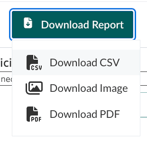
- Confirm the download
The CSV includes additional fields not shown on the dashboard, including:
- Learner ID
- SSO ID (if enabled)
- User status and role
- Assignment and training period details
- Completion timing
- SCORM indicators
- Policy status
- Custom Categories
Download Image
- Set Prepare Data for Download to Yes
- Select Download Report > Download Image
- Confirm the download
This creates a PNG of the current dashboard view. It will not be interactive or able to be manipulated.
Download PDF
- Set Prepare Data for Download to Yes
- Select Download > Download PDF
- Choose download options, including:
- This View
- Specific dashboard sheets
- Scaling
- Paper size
- Orientation