
Overview
When uploading users in bulk, it’s important to prepare your template carefully. Following the guidance below helps prevent upload errors, rejected rows, and delays in processing.
This article focuses on how to format and complete the template correctly. For help resolving upload errors, see User Creation Troubleshooting.
Template Requirements

Before uploading your file, confirm the following:
- The maximum upload size is 10,000 users per file
- The file must be saved as a .CSV
- Do not modify column headers or column order
- Columns marked with an asterisk (*) are required
- Add one learner per row
- Avoid special characters
- If your organization uses Single Sign‑On, SSO ID is required and case sensitive
- When entering dates, add a space before the value to preserve formatting
Locations, Categories, and Labels
Locations, Custom Categories, and Labels must match exactly what already exists in Foundry.
- The uploader does not create new Locations, Categories, or Labels
- The uploader only applies existing values to users
- We strongly recommend finalizing all Locations, Categories, and Labels in Foundry before downloading and completing the template
To ensure accuracy:
- Use the legend download to copy and paste existing values directly into the template
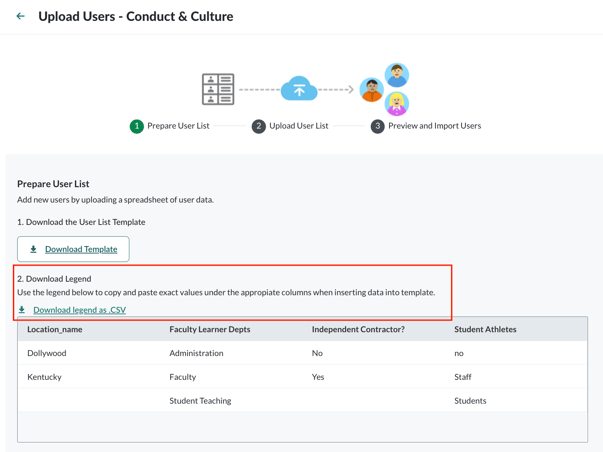
- Go to Users > Manage Users and select Download Results to view current classifications
If you do not have access to all Categories or Labels, contact another administrator in your organization.
Handling Blank Cells
You can control how blank cells behave during upload:
- Blank cells delete data in Foundry
- Blank cells keep existing data in Foundry (recommended)
Be consistent across the template to avoid unintended data changes.
User Roles (Y/N Columns)
Columns with Y/N values define user roles.
- Each learner must have at least one “Y” selected
- For employee populations, one Y must appear in either of the designated role columns (for example, supervisor or non‑supervisor)
Incorrect or missing role selections may cause upload failures.
Important
If the template does not follow the guidance above, some rows may be rejected during upload. You can review rejected rows by downloading the Rejected Rows CSV from the User Upload page.
For detailed explanations of common errors, see User Creation Troubleshooting.