
Course reminders are sent to learners based on the settings you choose when creating an assignment.
How to set up course reminders at Assignment creation
-
Log in to your Administrator account
-
Click Assignments
-
Select Create Assignment in the top‑right corner
-
Choose the type of assignment you want to send (Quick or Automated)
-
Fill out all Assignment Details
- Expand the Communications section. This is where Course Reminder settings live.

-
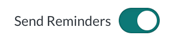
Scroll to the Reminders Section and turn the Send Reminders toggle ON
-
Select your reminder schedule by selecting:
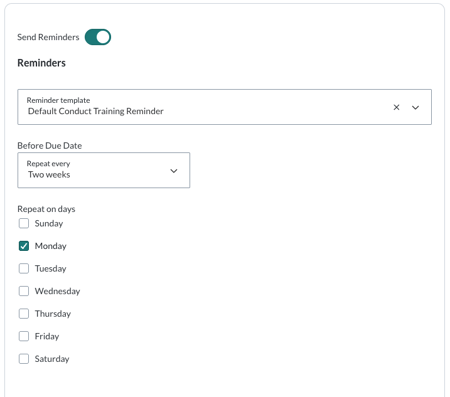
- Your preferred Reminder template
- Note: We provide a standard Communications template by default. If you'd like to create a Custom Template, you must do so by navigating to the Communications section in the left navigation pane. More information can be found in this article: Create A Reminder Template.
- How often Reminders go out to learners before the Assignments Due Date
- Which day(s) of the week Reminders go out
- Your preferred Reminder template
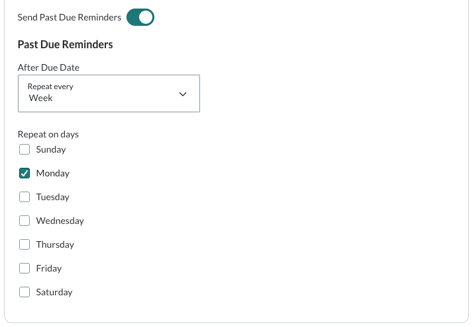
- If you choose to turn Past Due Reminders on to remind your learners that the Assignment Due Date has passed, you can also do that here.
How to send an instant reminder
You can also send a one‑time reminder to learners who have not yet completed a course.
-
Locate the assignment you want to send a reminder for
-
Click the Send Reminder button

-
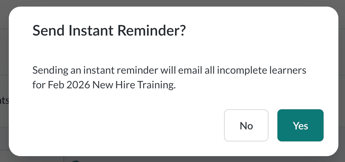
A dialogue box will appear. Click the YES button to confirm. This will send one email to any learner who has not completed the course.
Troubleshooting
Why is a user still receiving emails about old assignments?
There are several reasons a user may continue to receive notifications for an assignment:
- The user may have multiple courses assigned that they are not aware of
- The user may still have an incomplete course, with remaining lessons or slides required to reach 100% completion
- The user may have duplicate user records in your account and is receiving notifications for courses assigned to those records
I don’t think my user is receiving emails—what can I do?
Most notifications are delivered within one to two hours, but larger batches of notifications can take up to 24 hours. If more than 24 hours have passed, ask the user to check their spam or junk folders to see if the email was filtered there.
You may also need to work with your IT department to allowlist Foundry email domains and IP addresses to ensure emails from the platform are not flagged or blocked.