
Creating an assignment is what activates training in Foundry. Automated assignments are designed for situations where learners should be assigned training over time—based on criteria you define—rather than from a fixed, one-time roster.
Automated Assignments offer more flexibility because learners are added based on selection criteria such as Custom Categories, Locations, and previously completed learning activities. Each night, Foundry checks the users in your account and assigns training to learners who match your criteria.
When to use an Automated Assignment
Automated assignments work best when learners need training on a rolling basis and you do not want to maintain a manual roster. Common examples include ongoing new hire training, rolling admissions, and training requirements that apply when someone meets specific criteria.
Before you begin
To create an automated assignment efficiently, we recommend having the following set up first:
- Training Periods created
- Learners correctly categorized (for example, using custom labels and locations)
- Platform communications drafted (invite and reminder templates)
Step-by-step: Create an Automated Assignment
-
Click Assignments in the left navigation pane to open the Assignments page.
-
Click Create Assignment in the top-right corner of the screen.
-
Select Automated Assignment.
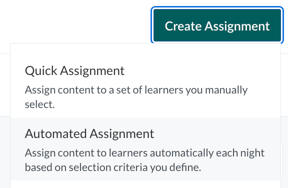
-
Complete the required sections below, starting with Assignment Details.
Assignment Details (Automated Assignment)
In the Assignment Details section, you set the core timing and structure of your automated assignment. These settings determine when Foundry starts and stops adding learners, how long each learner has to complete training, and when the assignment fully ends.
Assignment Name
Internal only. Learners will not see the assignment name. Use a clear, specific name so administrators can identify the assignment later.
Training Period
Training Periods help you manage retraining and reporting by ensuring learners receive content once per training cycle.
Start Date (Automation begins)
The day the assignment starts adding learners. Starting on this date, Foundry begins checking for eligible learners based on your selection criteria.
End Date (Automation stops)
The day the assignment stops adding learners. After this date, no new learners will be added to the assignment, even if they meet the criteria.
Due Duration
The number of days each learner has to complete the assignment, starting from the day they receive the assignment. Because learners can be added on different days, each learner’s due date can be different.
Archive Date
On this date, the assignment ends and learners will no longer be able to make progress in the assigned content.
Learning Activities (Content)
Select the courses to include in the assignment. This option is multi-select, but we do not recommend assigning more than three learning activities per assignment. This cannot be adjusted after the automation begins.
Note about “Part 2” courses: Some courses include a Part 2 follow-up (typically a survey taken 4–6 weeks after a learner completes Part 1). If you select a learning activity that includes Part 2, Foundry automatically adds Part 2 to the assignment.
Note: You can modify the template used for the automatically generated Part 2 after the assignment has been created.
Selection Criteria (how learners are picked up)
Instead of selecting a fixed roster, automated assignments require criteria that Foundry uses to identify eligible learners. Foundry checks for eligible learners daily and assigns training to those who match. This cannot be adjusted after the automation begins.
Selection criteria filters may include:
- Must be added this year or…
- Must have one of these roles…
- Must be in one of these locations…
- Must be in one of these custom labels…
- Must have already completed all of…
- Content completed ever
- Content ever actively assigned
- Must have never before been assigned any of…
- Excluding learners who are already in an active status within an active assignment (to avoid conflicting active assignments)
Custom Labels logic (important)
When using the Custom Labels filter, Foundry applies different logic depending on where the labels are selected:
- If you select two labels within the same category, OR logic applies (label A or label B).
- If you select labels across different categories, AND logic applies (category A label and category B label).
Example: If learners must have both Gryffindor and Gryffindor Captain labels, only learners who have both labels will be eligible.
Optional: Set an intersession (Completed filter)
The Completed filter includes an option to set an intersession between a prerequisite learning activity and the learning activity in this assignment.
If you are manually assigning a Part 2 follow-up survey, use this option to apply the same intersession for all learners.
For courses that include a Part 2, you do not need to create a separate assignment for Part 2. Assigning the full course includes both Part 1 and Part 2.Scheduling and timing
Automation Begins
The date Foundry begins checking for eligible learners and sending invitations. This cannot be adjusted after the date has passed.
Automation Stops
The date Foundry stops inviting new learners who meet the criteria. On this date, the assignment closes and no new learners are invited. Learners who were already assigned can continue making progress. This can be adjusted after automation begins up until the day the automation stops.
Due Duration
The number of days after a learner receives the invitation before the assignment is due. Because invitations are sent on a rolling basis, the due date varies by learner. This can be adjusted after automation begins.
Archive Date
The date the assignment moves from Active to Deactivated and learners can no longer make progress in the assigned courses. This can be adjusted after automation begins up until the archive date.
Communications
Invitation and reminder emails are how most learners learn they have training assigned and where to access it, since each organization uses a custom login URL.
Invite Template (Invitations)
This is the email sent when a learner is invited to start training and how they access Foundry to complete the assignment.
- The invite template cannot be adjusted after the automation begins.
- Invitation emails can be turned on or off per assignment, and that setting can be adjusted after automation begins.
If you turn off invitation emails, we recommend using an alternative method to alert learners that training has been assigned.
Reminder Template
The email sent to learners who have not completed the full assignment. This can be turned off and can be adjusted after automation begins.
Reminder Schedule
Controls when reminders are sent before and after the due date. This can be turned off and can be adjusted after automation begins.
Advanced Settings
You can disable:
- Surveys
- Supplemental question set surveys (dependent on the learning activity)
If surveys are disabled, learners still complete in-course quizzes and assessments, but administrators will not receive an Impact Report.
Administrators can also force Close or Archive an assignment.
Note: In the course Equity, Acceptance, and Respect: Global Harassment and Discrimination Prevention, surveys are built into the course and cannot be disabled. If you try to disable surveys and receive the error message “Contents cannot be a survey or have a survey within a group if it is skipped,” this is expected behavior for that course.
Understand assignment status: Closed vs Archived
For automated assignments, two deactivation states matter most:
- Closed assignments do not accept new learners, but learners who were already assigned can continue progress and complete their courses.
- Archived assignments do not accept new learners, and learners can no longer make progress in the assigned courses.
After you create the assignment
Invitations are sent based on a queue and may not be sent instantly when you save the assignment. We recommend checking back the next day after the system processes eligible learners.
If a learner is not assigned due to an error, the learner will appear in the Assignment Settings with the status Error.